AWS VPC Peering Guide
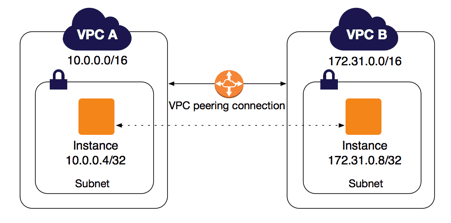
As the AWS services we operate at our company continue to grow, VPCs have been divided, and VPC peering has become necessary.
So this time, I'll document the process of setting up VPC peering on this blog.
What is AWS VPC Peering?
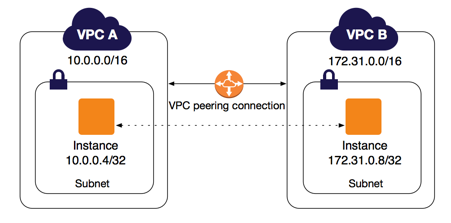
Source: https://docs.aws.amazon.com/ko_kr/vpc/latest/peering/what-is-vpc-peering.html
VPC peering is a networking connection between two VPCs that enables you to route traffic between them using private IPv4 or IPv6 addresses.
In simple terms, it's like connecting Router A and Router B together.
Before Starting AWS VPC Peering
In this article, I'll define some terms to help you understand more quickly and clearly.
- VPC_A: 172.20.0.0/16 (Requester)
- VPC_B: 172.30.0.0/18 (Accepter)
Requesting AWS VPC Peering
First, navigate to the VPC Dashboard.
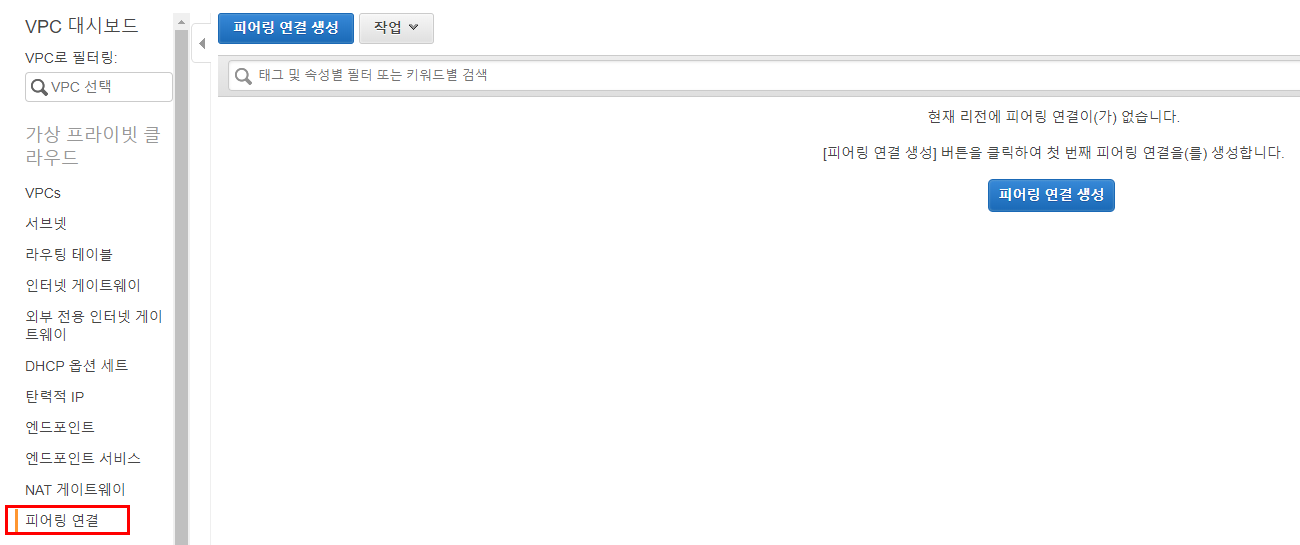
- Select Peering Connections
- Click Create Peering Connection
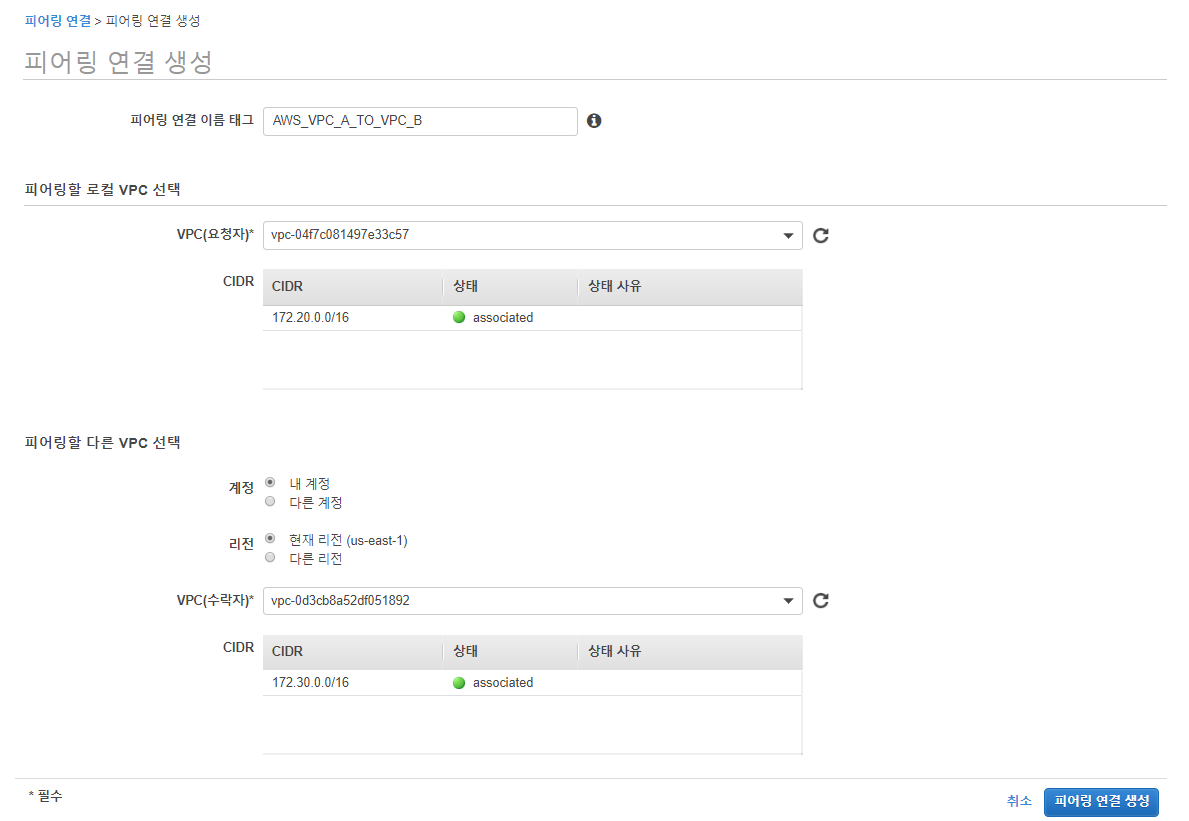
- Select the Requester VPC and Accepter VPC
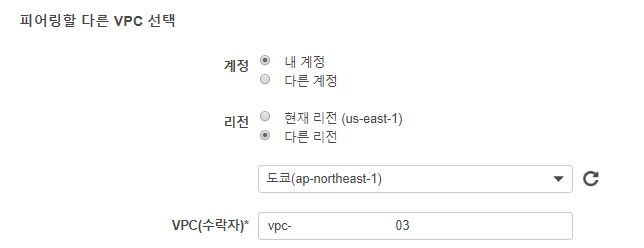
4-1. If you want to connect to a VPC in a different region, select "Another Region" at the bottom and enter the VPC ID you want to peer with.
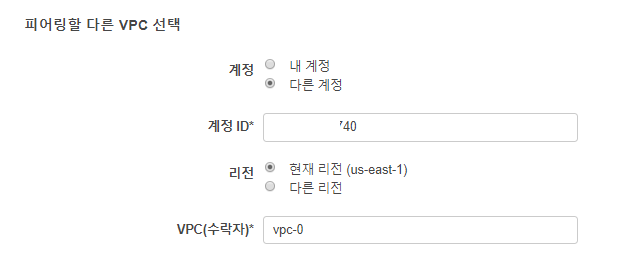
4-2. To connect to a VPC in a different account, enter the Account ID (found in Billing -> Account Settings -> Account ID) and directly input the VPC ID.
In my case, I'll connect to VPC_B in the same region under my own account.
- If everything went well, you should see a message confirming that the request has been completed.
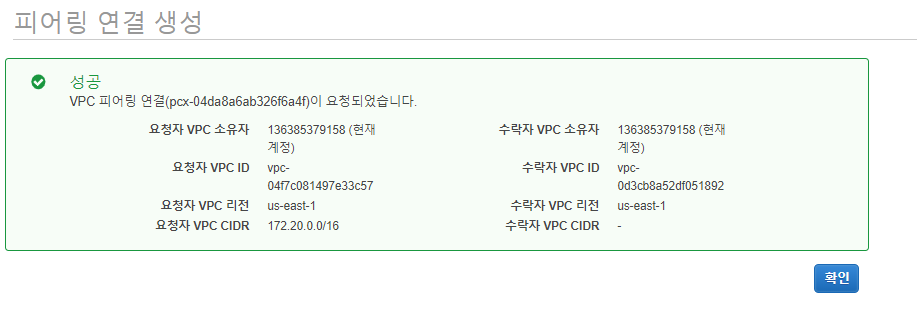
Figure 2: Request from VPC_A to VPC_B completed


Figure 3: Request sent from VPC_A to VPC_B
Now that I've sent the request from VPC_A to VPC_B, let's accept it.
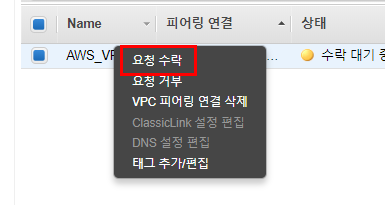
Right-click on the VPC peering connection that needs to accept the request and click "Accept Request" to allow the connection between VPC_A and VPC_B.
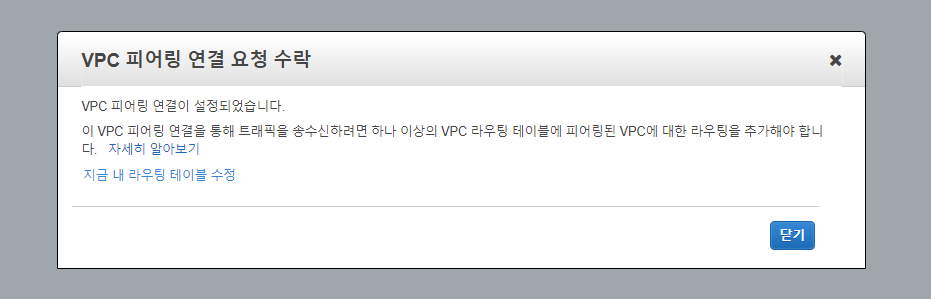
If everything went smoothly, you should see a notification confirming that the request has been accepted.
Adding Routes for Communication Between Peered VPCs

<Grin>
If you're thinking "Wait, is peering already done?" and considering taking a break, think again.
For peered VPCs to send and receive traffic, you need to add routes for the peered VPC in both VPC_A's and VPC_B's route tables.
(I wish this could be done automatically - that's a bit disappointing)
First, let's add a route to VPC_B in VPC_A.
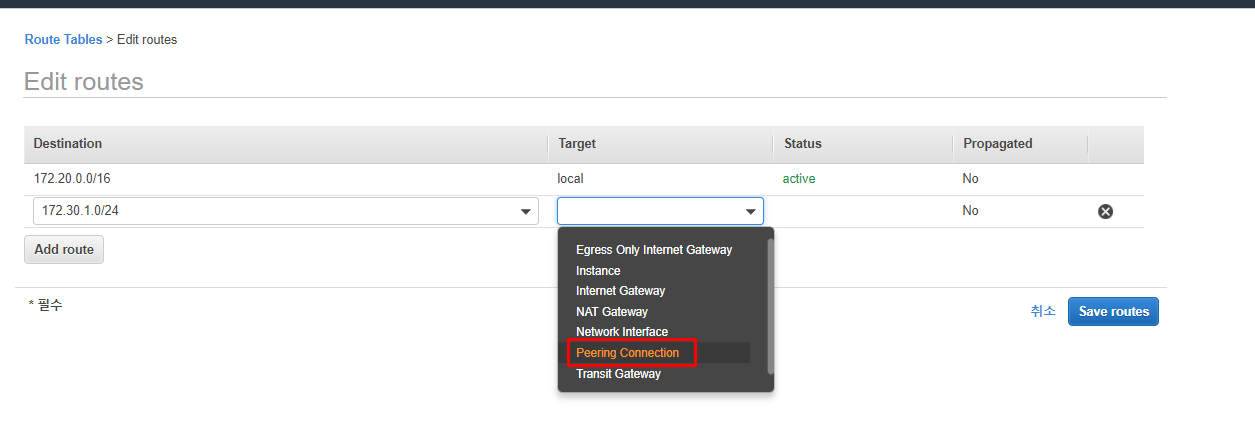
When you click on Peering Connection, a prefix (pcx-) will be added.
Select the peering ID from the autocomplete and click Save routes.
If autocomplete doesn't appear, it means you cannot add it to that route table.


Using the same method, add a route to VPC_A in VPC_B as well.
If there were no issues, you should see a message confirming successful route registration.
Now you're about 80% done.
Adding Security Groups
One thing that surprised me here was that autocomplete for the Source doesn't work when configuring security groups.

<Peering settings cannot be selected>
I was quite confused here. The autocomplete that worked so well wasn't working, and I spent a lot of time searching documentation wondering what I did wrong.
After extensive Google searching, I learned that autocomplete only shows Security Groups within the same VPC.
So how do you add the policy? You need to directly enter the actual ID of the security group.
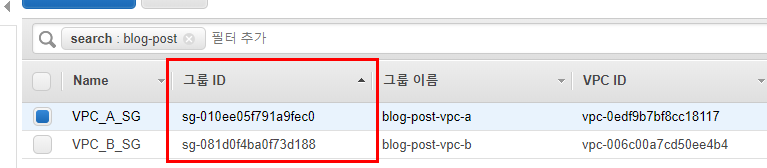
I'll open ICMP from VPC_A_SG (sg-081d0f4ba0f73d188) in VPC_B_SG (sg-010ee05f791a9fec0) to allow communication from VPC_A to VPC_B.
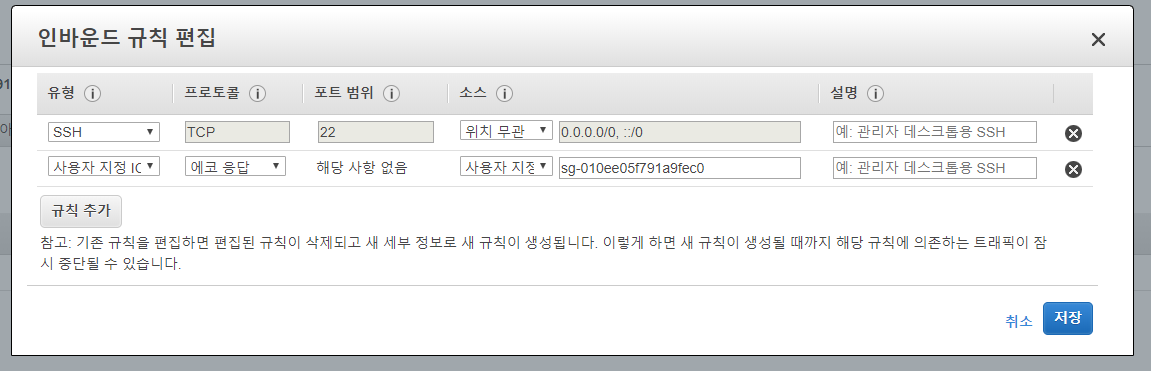
Although autocomplete doesn't work, you can directly enter the Security Group ID like this.
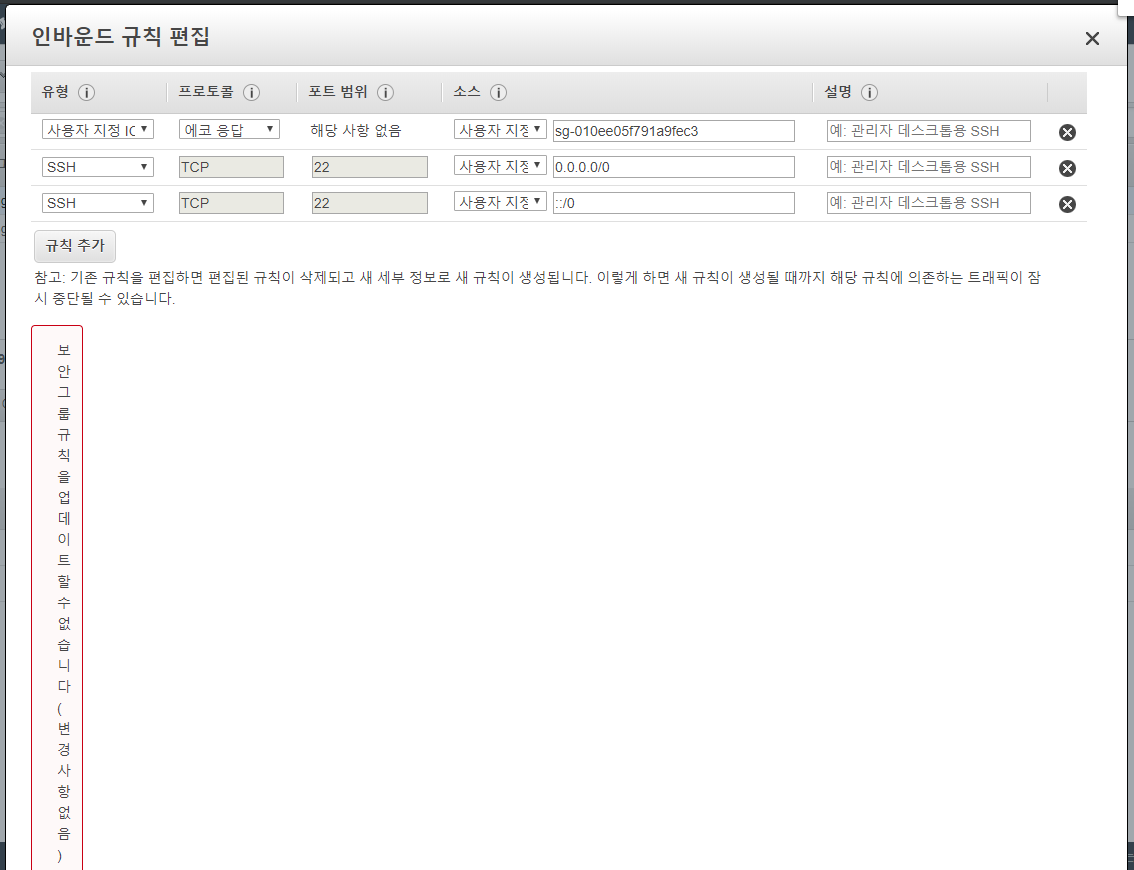
If you enter an incorrect Security Group ID, the screen breaks like this..?
Cannot update security group rules (no changes): The security group '~~' does not exist
While writing this blog post, there seems to be an Amazon issue causing the screen to break.
Anyway, if you enter a non-existent Security Group ID, you'll get an error saying the update cannot be completed.

PING working normally
With this, your VPC peering is complete.
Can't Use Internal DNS After VPC Peering?

I was excited that VPC peering was complete and communication was confirmed, but I noticed that communication between VPC_A and VPC_B wasn't working in some cases.

If peering is done, shouldn't DNS resolve to private addresses?
After peering, communication should occur between private address ranges, but DNS lookup results were going external.
So can't we do DNS lookups for the peering connection? The answer is No, you can!
Let's go back to the VPC peering tab we visited earlier.
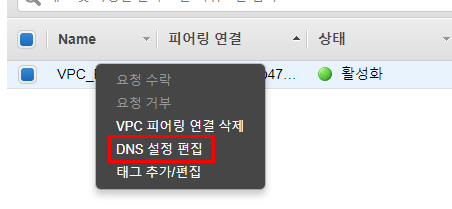
Right-click on the connected peering connection and click "Edit DNS Settings."
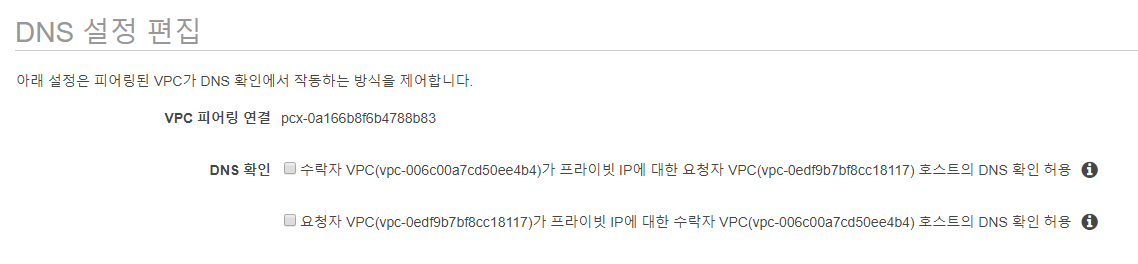
Check 'Allow requester VPC (VPC_A) to resolve DNS of accepter VPC (VPC_B) hosts to private IP' and save. Then query the DNS from the server again.
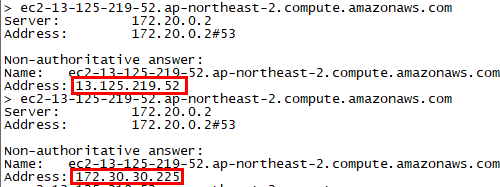
The public IP has been correctly changed to a private IP, and communication is working properly.
Conclusion
While VPCs are separated in AWS for network isolation or service separation, there are various reasons why divided VPCs need to communicate with each other.
I searched for a lot of related materials, but there were situations where clear answers weren't available, so I hope this article provides you with a clear solution.